DayPilot
| Demo | |
|---|---|
| Downloads | |
| Repository | |
| Languages | JavaScript |
| Code License | Apache License 2.0 (Open-Source) |
Overview
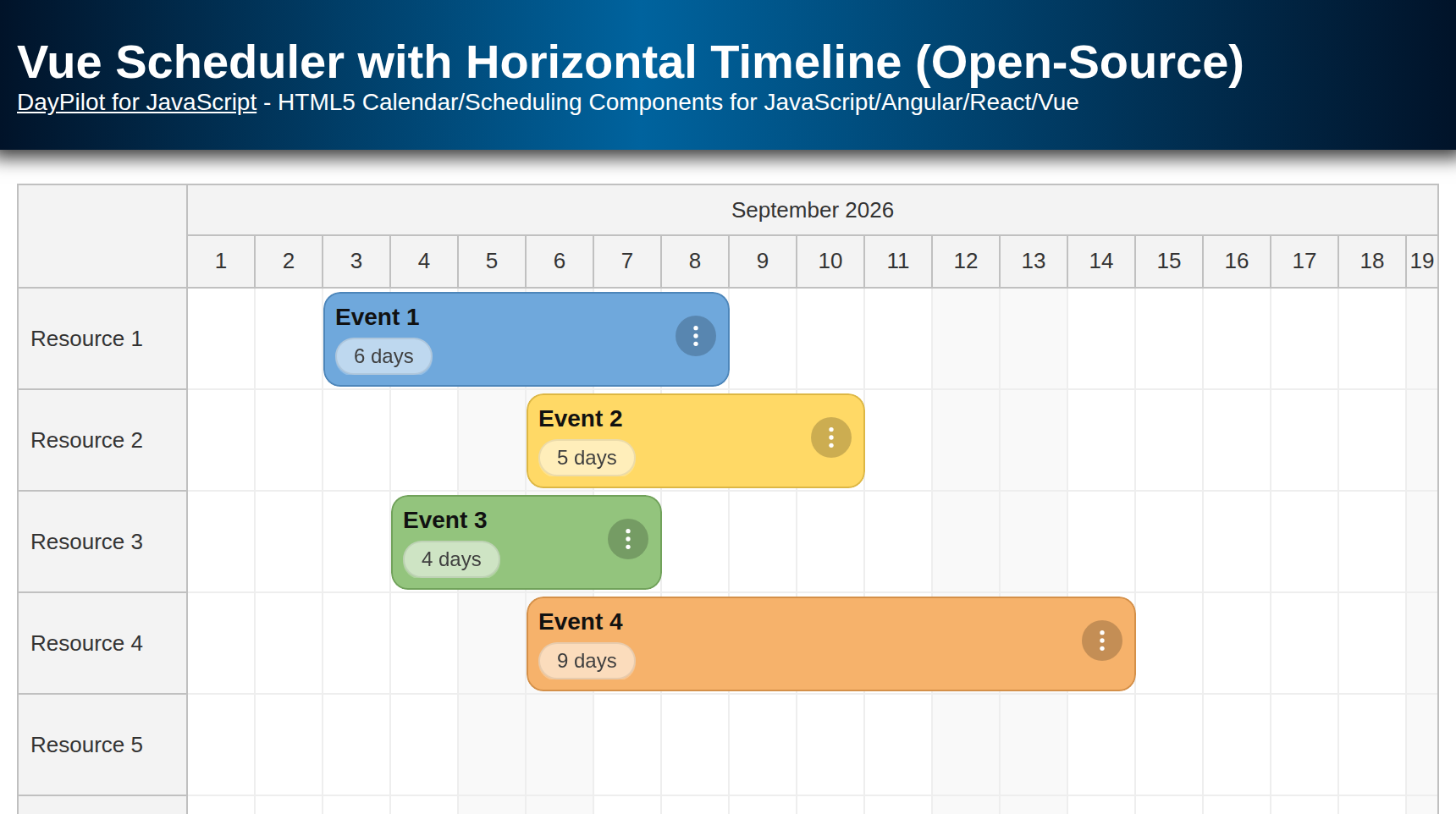
Horizontal timeline with configurable scale and length, and multi-row time headers.
Rows representing resources (people, tools, locations, machines, trucks).
Built-in UI for create/move/resize/edit/delete.
A minimal toolbar for month switching that uses programmatic date changes and scrolling.
Inline buttons/icons (3-dots menu, badges) implemented using event active areas.
Context menu with custom event actions.
Scheduler component optimized for big data (progressive row/event rendering).
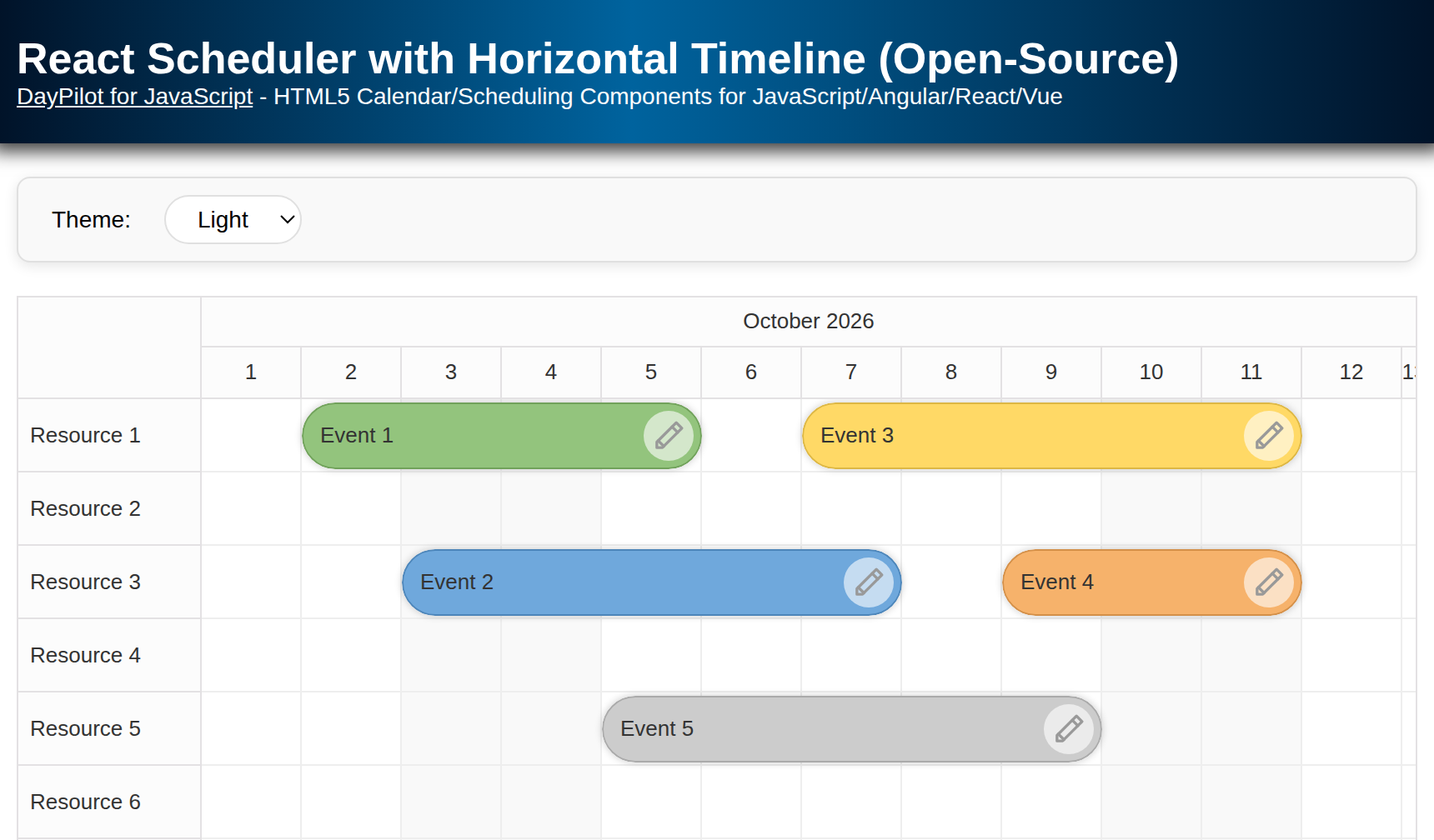
Themeable via CSS.
This app uses the JavaScript Scheduler component from the open-source DayPilot Lite for JavaScript scheduling library.
Quick Start
The download is a static JavaScript project with the DayPilot library included. Serve the extracted directory with a static web server and open index.html; no npm installation or build step is required. The sample keeps changes in browser memory, so reloading the page restores the initial events.
To add the Scheduler component to your application, include the DayPilot library and add a container <div> element:
<script src="js/daypilot/daypilot-all.min.js"></script>

<div id="scheduler"></div>

<script>
  const scheduler = new DayPilot.Scheduler("scheduler");
  scheduler.init();
</script>
Tip: To create a quick proof of concept, you can use the UI Builder app and configure the Scheduler visually (timeline, headers, behavior). You can immediately see a live preview, and download a ready-to-run project (JavaScript/TypeScript/Angular/React/Vue).
Scheduler Timeline Configuration

We’ll configure the Scheduler to show a timeline for the current month in daily scale. The timeline can be configured using a combination of the following settings:
Scale
The time unit of each cell. Common values:"Hour","Day","Week","CellDuration"(custom number of minutes).Time headers
Stack multiple header rows (e.g., Month → Day) to keep the grid readable.Start date
The first visible column. Update it as users navigate.Length
How many days to render on the timeline.Cell width
Affects density and scrolling comfort; 60–100 px works well for daily views.
Let’s start with the following configuration:
const scheduler = new DayPilot.Scheduler("scheduler", {
  timeHeaders: [{ groupBy: "Month" }, { groupBy: "Day", format: "d" }],
  scale: "Day",
  days: DayPilot.Date.today().daysInMonth(),
  startDate: DayPilot.Date.today().firstDayOfMonth(),
  cellWidth: 100,
  rowHeaderWidth: 100,
  // ...
});
scheduler.init();
The rowHeaderWidth setting gives the resource names enough space to remain on one line.
Event Styling with Active Areas (Inline Icons & Actions)
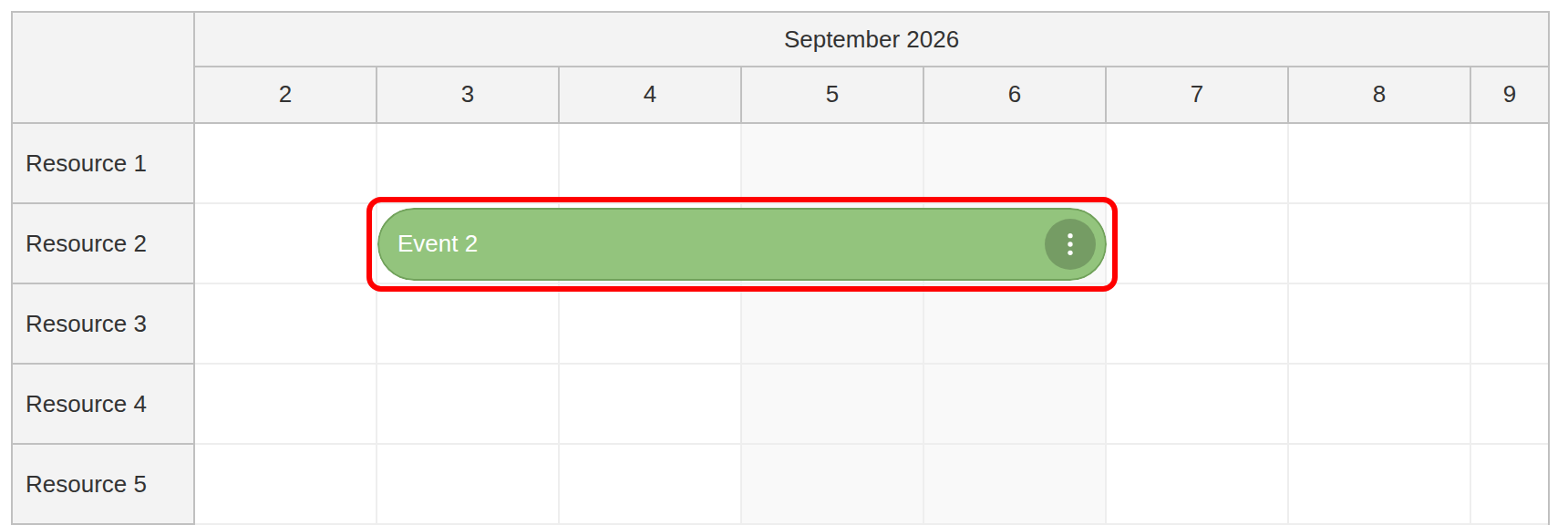
The best way to style the events is to create a custom CSS theme (use the online Theme Designer to generate one).
In this project, we will stick to the default theme and only modify selected styles (such as event padding and event border radius) using special Scheduler properties.
const scheduler = new DayPilot.Scheduler("scheduler", {
  // ...
  eventHeight: 40,
  durationBarVisible: false,
  eventBorderRadius: 20,
  eventPadding: 10,
  rowMarginTop: 2,
  rowMarginBottom: 2,
  // ...
});
scheduler.init();
To add elements to events and to modify the content depending on the event data, use the onBeforeEventRender event handler.
The Scheduler lets you add active areas to events - absolutely positioned elements with a defined appearance and actions. Active areas let you add custom actions, such as:
3-dots menu button in the top-right corner that opens the context menu (
action: "ContextMenu").Badges (e.g., duration or status) in corners.
Inline actions like delete or “open details”.
Active areas can display images in various formats (JPEG, PNG, SVG). DayPilot includes a bundled SVG icon set that you can browse and download.
Here we add a 3-dots icon that opens the context menu:
onBeforeEventRender: (args) => {
  const color = args.data.color || "#999999";
  args.data.backColor = color;
  args.data.fontColor = "white";
  args.data.borderColor = "darker";
  args.data.areas = [
    {
      right: 6,
      top: 6,
      width: 28,
      height: 28,
      padding: 6,
      symbol: "./icons/daypilot.svg#threedots-v",
      backColor: "#00000033",
      fontColor: "white",
      borderRadius: "50%",
      action: "ContextMenu",
    }
  ];
}
The symbol property lets you pull an SVG icon from a sprite (e.g., daypilot.svg#threedots-v). The paths are relative to the sample page, so the icons also work when the project is served from a subdirectory.
Context Menu (Edit / Duplicate / Delete)
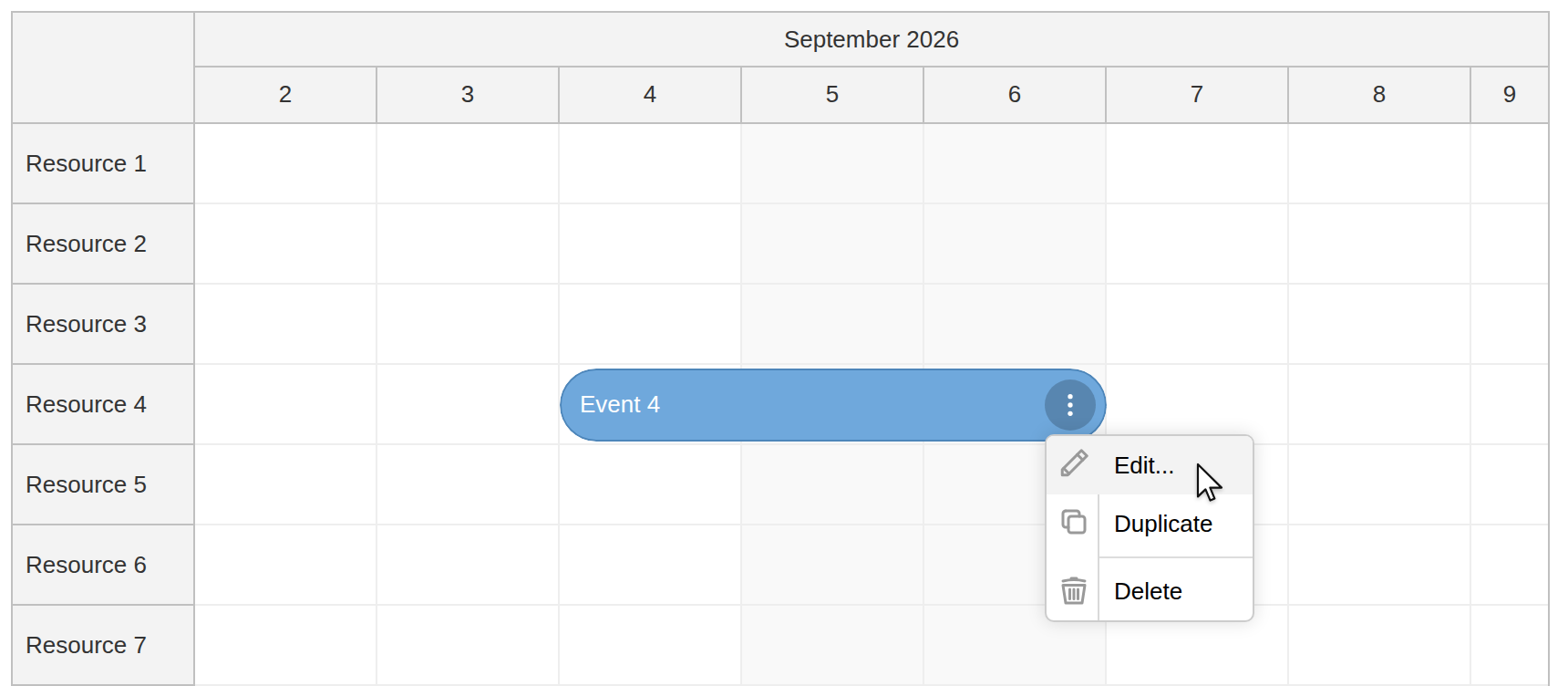
Attach a DayPilot.Menu with items that use symbol, image, or icon. In this sample:
Edit… opens the built-in modal form.
Duplicate clones the event one day forward using
e.start().addDays(1).Delete removes it from the data set immediately.
contextMenu: new DayPilot.Menu({
  items: [
    {
      text: "Edit...",
      symbol: "./icons/daypilot.svg#edit",
      onClick: args => { app.editEvent(args.source); }
    },
    {
      text: "Duplicate",
      symbol: "./icons/daypilot.svg#copy",
      onClick: args => {
        const e = args.source;
        const newStart = e.start().addDays(1);
        const newEnd = e.end().addDays(1);
        scheduler.events.add({
          start: newStart,
          end: newEnd,
          id: DayPilot.guid(),
          resource: e.resource(),
          text: e.text(),
          color: e.data.color
        });
      }
    },
    {
      text: "-"
    },
    {
      text: "Delete",
      symbol: "./icons/daypilot.svg#trash",
      onClick: args => { scheduler.events.remove(args.source); }
    }
  ]
}),
Tip: You can also tweak items dynamically with onShow (e.g., enable/disable per event).
Built-In Modal Form for Event Editing
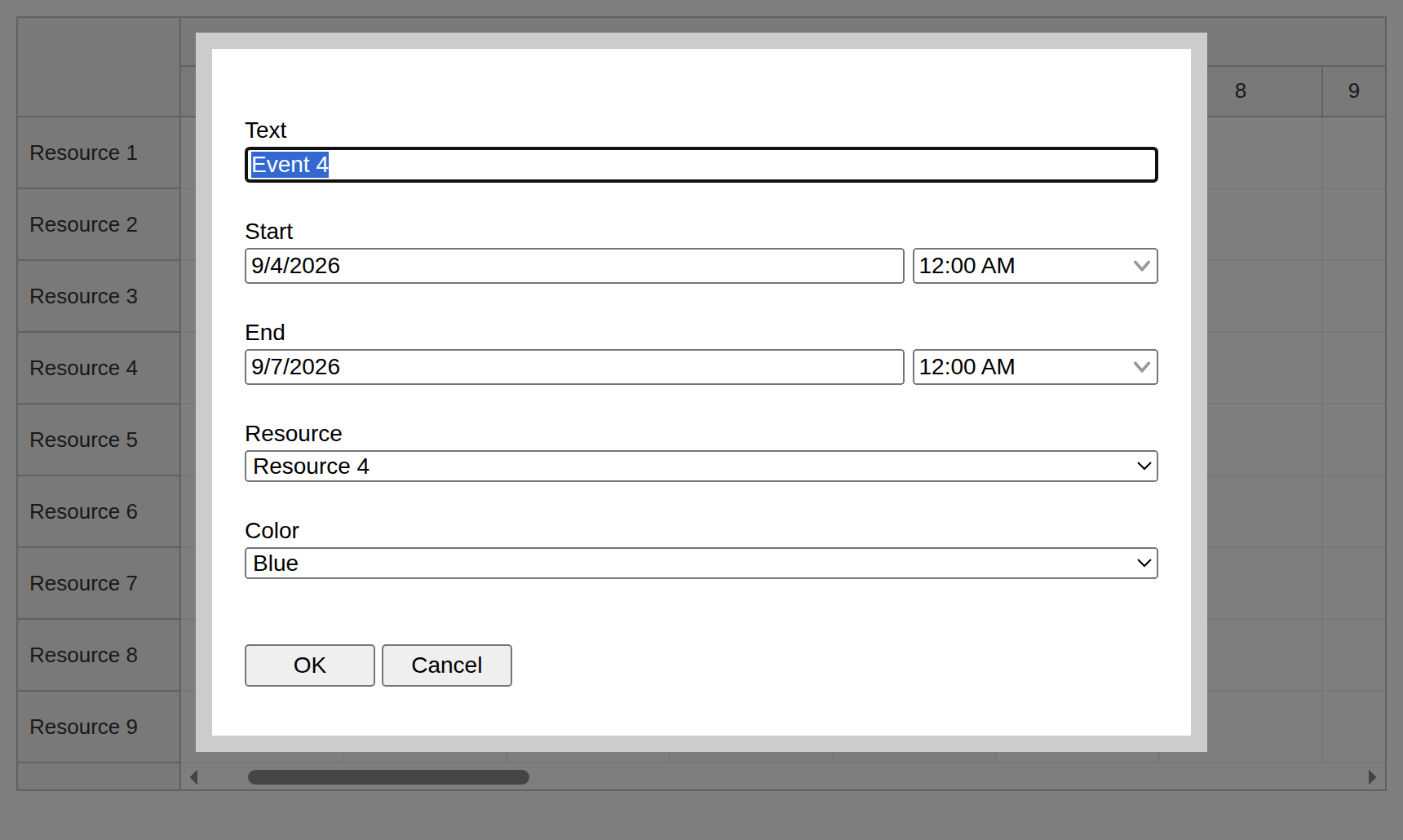
DayPilot includes a modal form that lets you create modal dialogs programmatically. This is good for prototyping, and you can easily replace the built-in modal dialog with a different implementation. To create a modal form quickly, you can use the modal dialog builder.
Our app uses the following modal dialog that shows the event text, start, end, resource and color. The field IDs match event data properties, and the resource and color fields use option arrays. After the user confirms, scheduler.events.update() applies the returned data and redraws the event; canceling leaves it unchanged:
const app = {
  // ...
  colors: [
    { name: "(default)", id: null },
    { name: "Blue",    id: "#6fa8dc" },
    { name: "Green",   id: "#93c47d" },
    { name: "Yellow",  id: "#ffd966" },
    { name: "Red",     id: "#f6b26b" }
  ],
  async editEvent(e) {
    const form = [
      { name: "Text", id: "text" },
      { name: "Start", id: "start", type: "datetime" },
      { name: "End", id: "end", type: "datetime" },
      { name: "Resource", id: "resource", type: "select", options: scheduler.resources },
      { name: "Color", id: "color", type: "select", options: app.colors }
    ];
    const modal = await DayPilot.Modal.form(form, e.data);
    if (!modal.canceled) {
      scheduler.events.update(modal.result);
    }
  },
  // ...
};
Month Navigation (Previous / Today / Next)
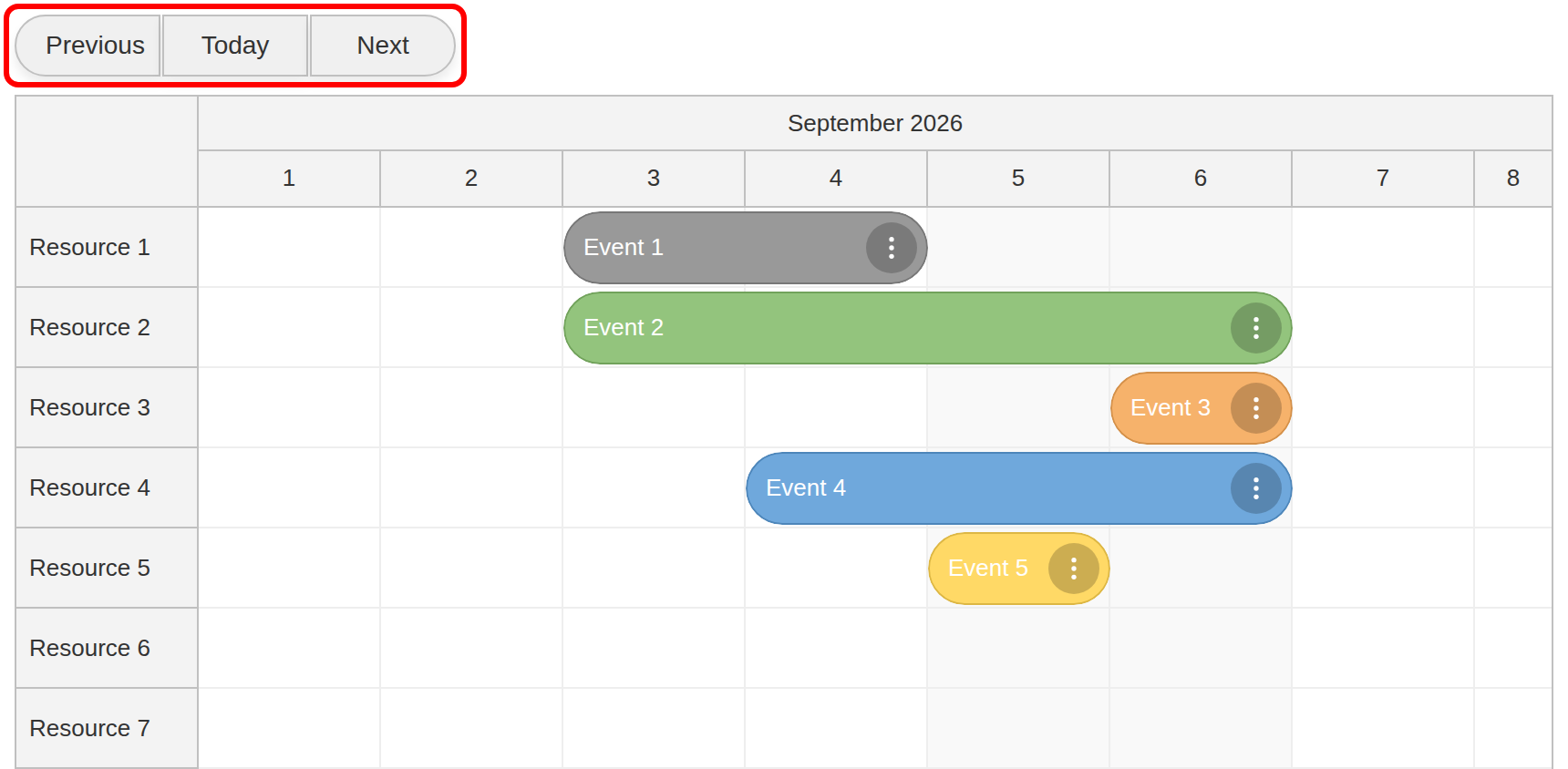
The toolbar above the Scheduler provides three buttons for switching the visible month:
Previous
Today
Next
We’ll add event handlers that compute a new month and call scheduler.update(). The buttons are stored in app.elements, and app.init() calls addEventHandlers() to connect them:
const app = {
  elements: {
    prev: document.getElementById("prev"),
    today: document.getElementById("today"),
    next: document.getElementById("next"),
  },
  // ...
  addEventHandlers() {
    this.elements.prev.onclick = () => {
      const d = scheduler.startDate.addMonths(-1);
      scheduler.update({ startDate: d, days: d.daysInMonth(), scrollTo: d });
    };

    this.elements.today.onclick = () => {
      const d = DayPilot.Date.today().firstDayOfMonth();
      scheduler.update({ startDate: d, days: d.daysInMonth(), scrollTo: d });
    };

    this.elements.next.onclick = () => {
      const d = scheduler.startDate.addMonths(1);
      scheduler.update({ startDate: d, days: d.daysInMonth(), scrollTo: d });
    };
  },
  // ...
};
The scrollTo option resets the horizontal viewport to the beginning of the selected month. Today returns to the current month. Navigation changes the visible range; it does not generate new events, so other months are empty unless you add or load events for them.
You can also use the Navigator component as a date picker for switching the date displayed by the Scheduler.
Load Resources & Events, then Scroll to a Date
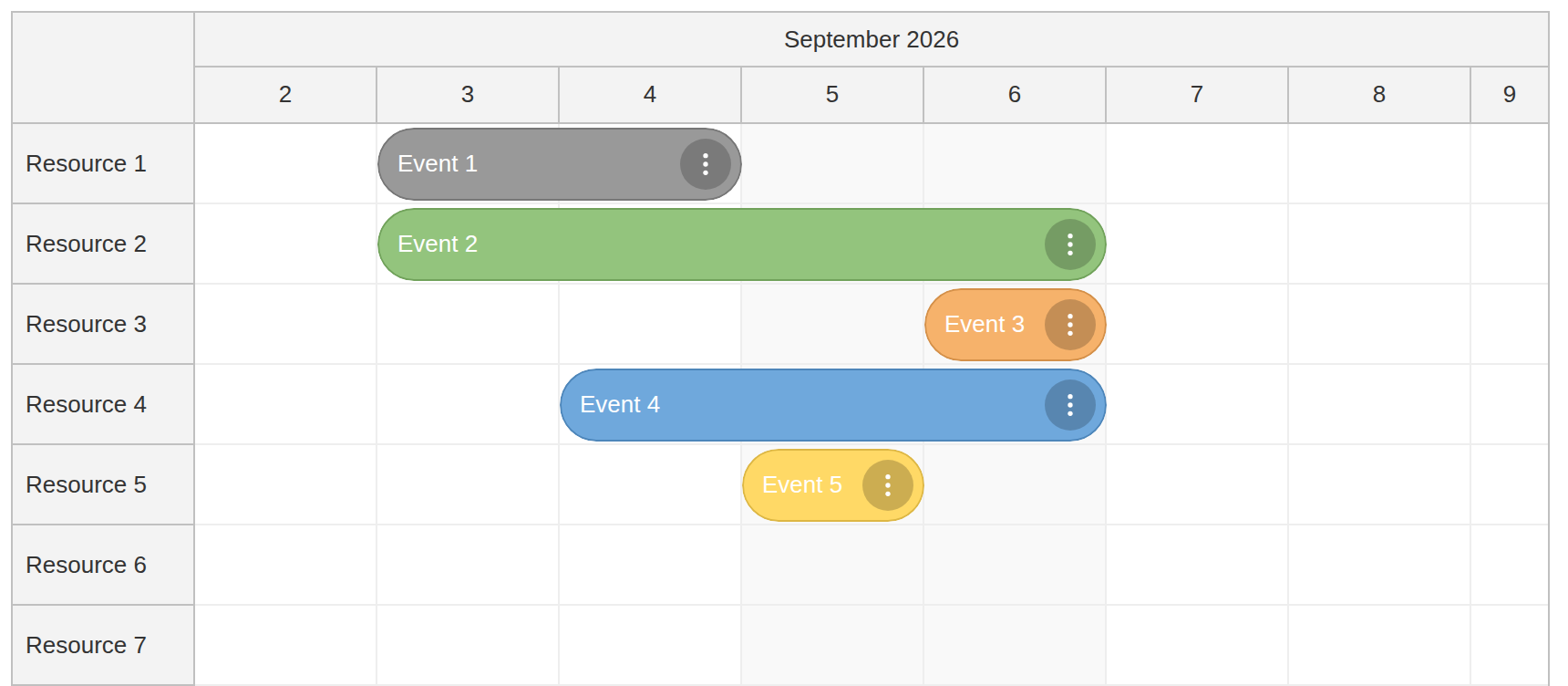
To load row data, update the resources property of the JavaScript Scheduler. It’s an array of objects that specify the row id and name:
const resources = [
  { name: "Resource 1", id: "R1" },
  { name: "Resource 2", id: "R2" },
  // ...
  { name: "Resource 9", id: "R9" }
];
Event objects need to define the id, start, end, text and resource properties. In this example, first is the first day of the current month, and each event’s resource matches a row ID:
const events = [
  { id: 1, start: first.addDays(2), end: first.addDays(4), text: "Event 1", resource: "R1" },
  { id: 2, start: first.addDays(2), end: first.addDays(6), text: "Event 2", resource: "R2", color: "#93c47d" },
  // ...
];
Here is how app.loadData() combines the arrays shown above. Both resources and events are loaded using a single update() call for improved performance:
const app = {
  // ...
  loadData() {
    const first = DayPilot.Date.today().firstDayOfMonth();

    const events = [
      // ...
    ];

    const resources = [
      // ...
    ];

    scheduler.update({ resources, events });
    scheduler.scrollTo(first.addDays(1));
  },
  // ...
  init() {
    this.loadData();
    this.addEventHandlers();
  }
};

app.init();
The scrollTo() call positions the viewport near the first sample events, on the second day of the month. It does not change the configured timeline start date.
The Scheduler uses progressive event rendering and progressive row rendering so only on-screen items are painted. You can tune debounce delays or switch to synchronous rendering if you’re dealing with smaller data.
Minimal Create/Move/Resize Handlers
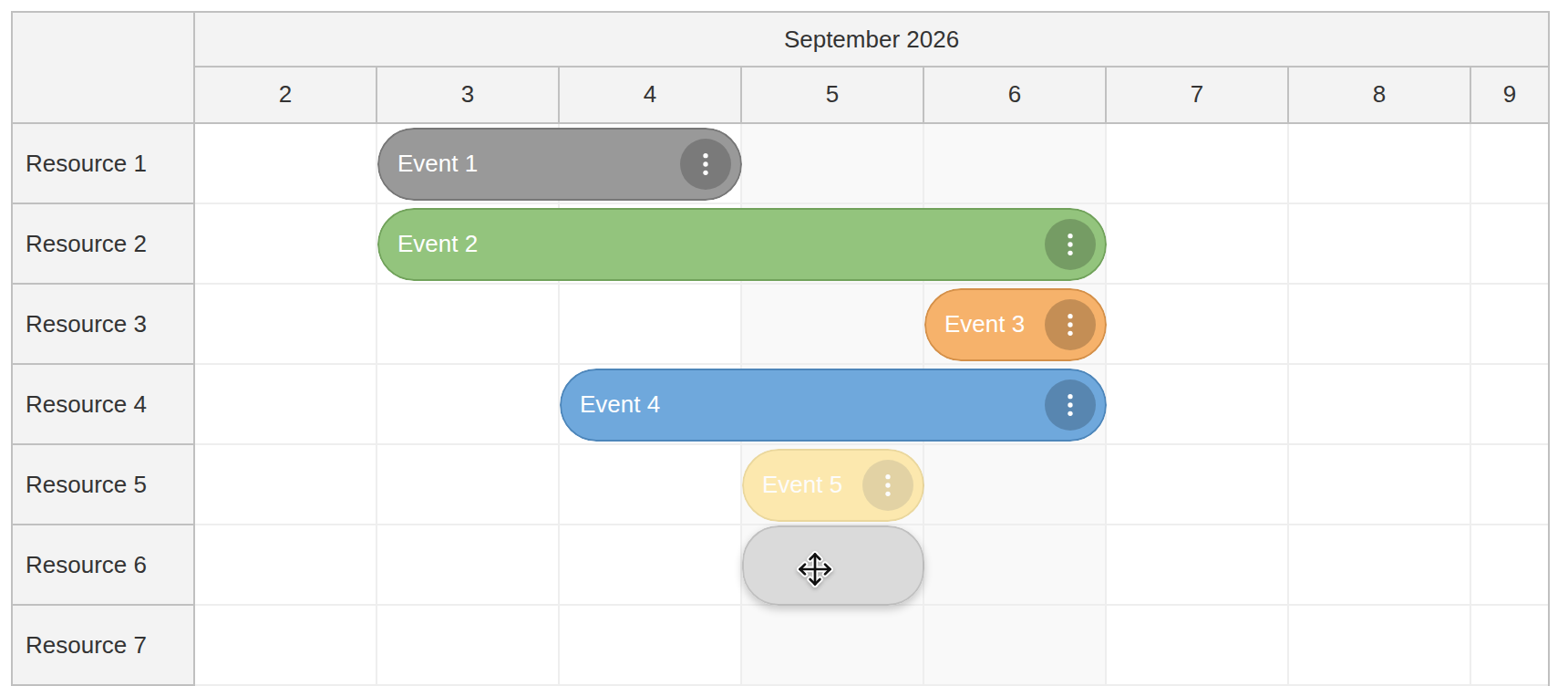
To handle user actions, we define the following event handlers in the Scheduler configuration:
const scheduler = new DayPilot.Scheduler("scheduler", {
  // ...
  eventMoveHandling: "Update",
  eventResizeHandling: "Update",
  // ...
  onTimeRangeSelected: async (args) => {
    const modal = await DayPilot.Modal.prompt("Create a new event:", "Event 1");
    scheduler.clearSelection();
    if (modal.canceled) { return; }
    scheduler.events.add({
      start: args.start,
      end: args.end,
      id: DayPilot.guid(),
      resource: args.resource,
      text: modal.result
    });
  },

  onEventMoved: (args) => {
    console.log("Event moved:", args.e.data);
  },

  onEventResized: (args) => {
    console.log("Event resized:", args.e.data);
  },
  // ...
});
scheduler.init();
The default action for selecting a time range is not defined, and we need to implement the event creation logic in onTimeRangeSelected.
Our handler opens a modal dialog and creates a new event with the entered text. It clears the selection after the dialog closes and returns without adding an event if the user cancels.
In our sample project, eventMoveHandling: "Update" and eventResizeHandling: "Update" let the Scheduler apply drag-and-drop changes to its local event data. The event moving and resizing handlers run afterward and log the changed event to the JavaScript console.
Theming & Branding
The sample uses the built-in default theme, which is included in the DayPilot library. To style the whole Scheduler with a custom CSS theme, include the downloaded theme stylesheet in your page and set the Scheduler’s theme property to the theme name.
For example, after including the stylesheet for a theme named scheduler_rounded, apply it with:
scheduler.update({ theme: "scheduler_rounded" }) // for exampleA custom theme needs both its CSS file and the matching
themevalue. This project does not bundle additional theme files.For fastest results, generate a custom theme using the Theme Designer (live preview + download).
You can also theme companion components like the Navigator to match.