DayPilot
| Demo | |
|---|---|
| Downloads | |
| Repository | |
| Technologies | angular |
| Code License | Apache License 2.0 (Open-Source) |
Angular Scheduler Component
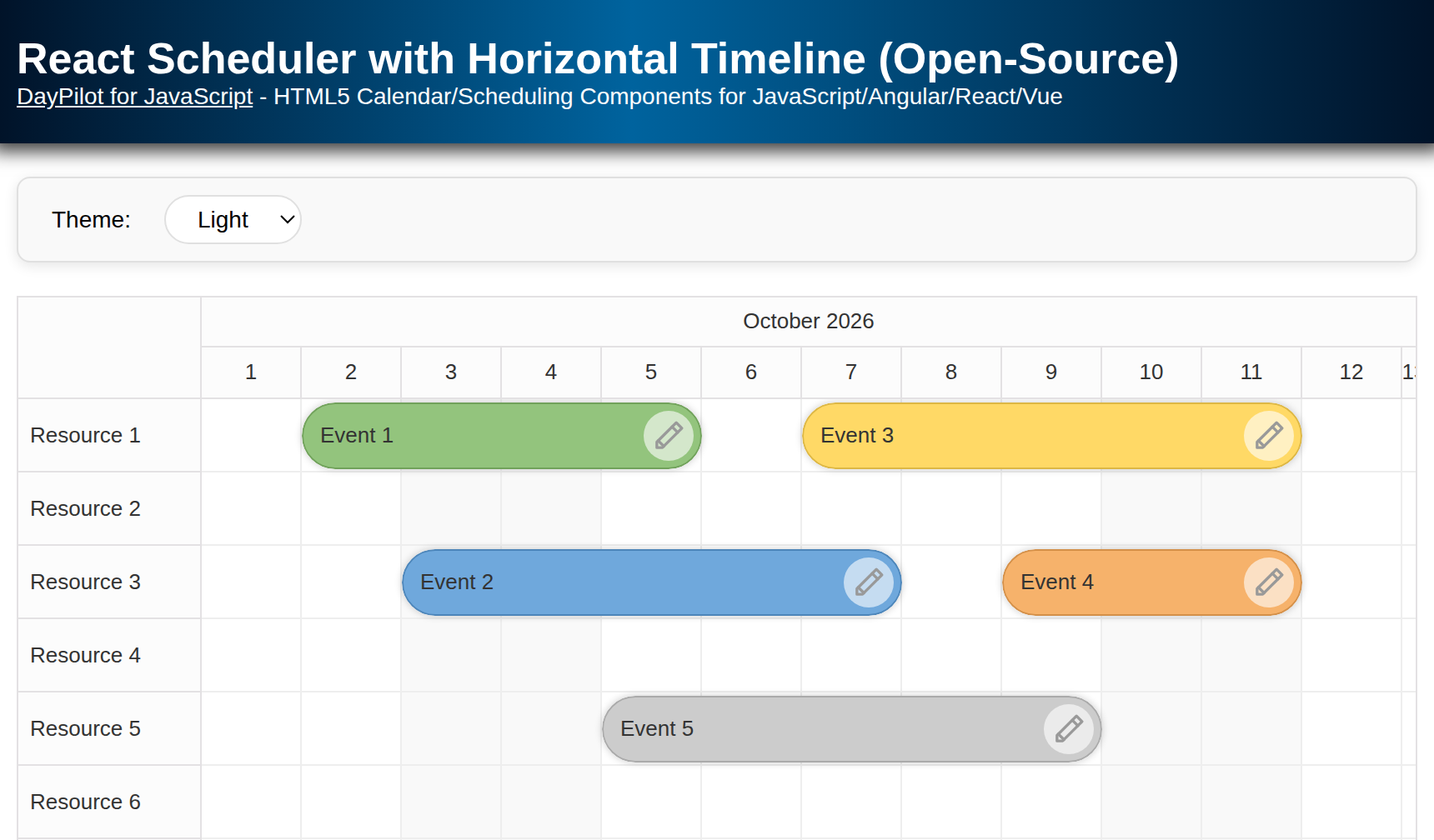
The Angular Scheduler component displays a horizontal timeline for multiple resources—such as people, locations, tools, machines, and vehicles.
It helps you:
-
manage reservations, plan projects, and visualize manufacturing workflows;
-
create staff rosters for hotels, restaurants, and call‑center agents;
-
schedule patients and rooms in hospitals or outpatient clinics;
-
allocate classrooms, labs, and exam halls for schools and universities;
-
plan aircraft gate assignments and turnaround times at airports;
-
dispatch delivery fleets and lock in last‑mile route blocks;
-
coordinate volunteers and shifts for large events or NGOs;
-
book event venues and stages for conferences, theaters, or festivals;
-
set preventive‑maintenance windows for factory equipment or data‑center racks;
-
build broadcast rundowns for TV or radio shows;
-
assign rail‑freight paths on shared tracks and in yards.
This tutorial shows how to install and configure the Angular Scheduler component. It uses the open-source DayPilot Lite version.
License
Apache License 2.0
Angular Scheduler: Installation
To install DayPilot Lite for Angular (@daypilot/daypilot-lite-angular), use NPM:
npm install @daypilot/daypilot-lite-angularThe Scheduler component is included since version 2025.2.667 (NPM package 4.0.0).
Angular Component Configuration
The standalone SchedulerComponent imports DayPilotModule and binds two signals to the Scheduler: config for settings and resources, and events for event data. This excerpt shows the component setup; the loading code and rendering handlers are explained below:
import {Component, ViewChild, AfterViewInit, signal} from '@angular/core';
import {DayPilot, DayPilotModule, DayPilotSchedulerComponent} from '@daypilot/daypilot-lite-angular';
import {DataService} from './data.service';
import {forkJoin} from 'rxjs';

@Component({
  selector: 'scheduler-component',
  standalone: true,
  imports: [DayPilotModule],
  providers: [DataService],
  template: `<daypilot-scheduler [config]="config" [events]="events" #scheduler></daypilot-scheduler>`,
  styles: [``]
})
export class SchedulerComponent implements AfterViewInit {

  @ViewChild('scheduler')
  scheduler!: DayPilotSchedulerComponent;

  events = signal<DayPilot.EventData[]>([]);

  // ...
  config = signal<DayPilot.SchedulerConfig>({
    timeHeaders: [{groupBy:"Month"},{groupBy:"Day",format:"dddd MMMM d, yyyy"}, {groupBy:"Hour",format:"HH:mm"}],
    scale: "Hour",
    days: DayPilot.Date.today().daysInMonth(),
    startDate: DayPilot.Date.today().firstDayOfMonth(),
    // ...
  });

  // ...
}
To create a new Angular project with a pre-configured Scheduler, you can use the UI Builder online app.
Horizontal Timeline
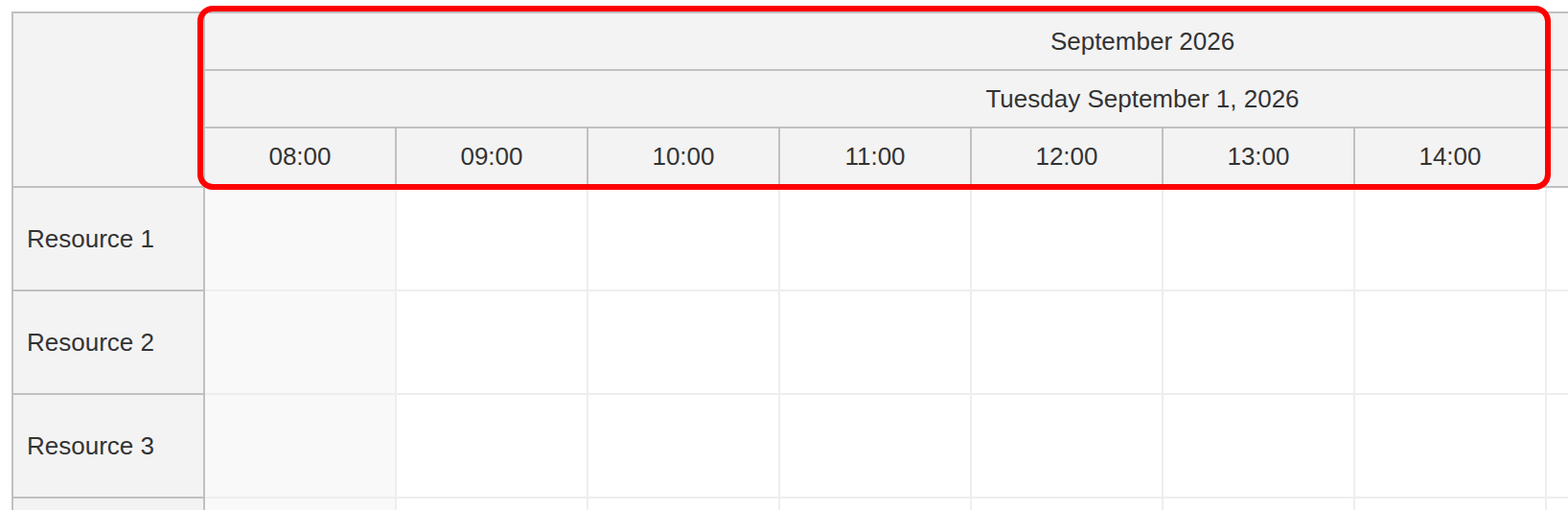
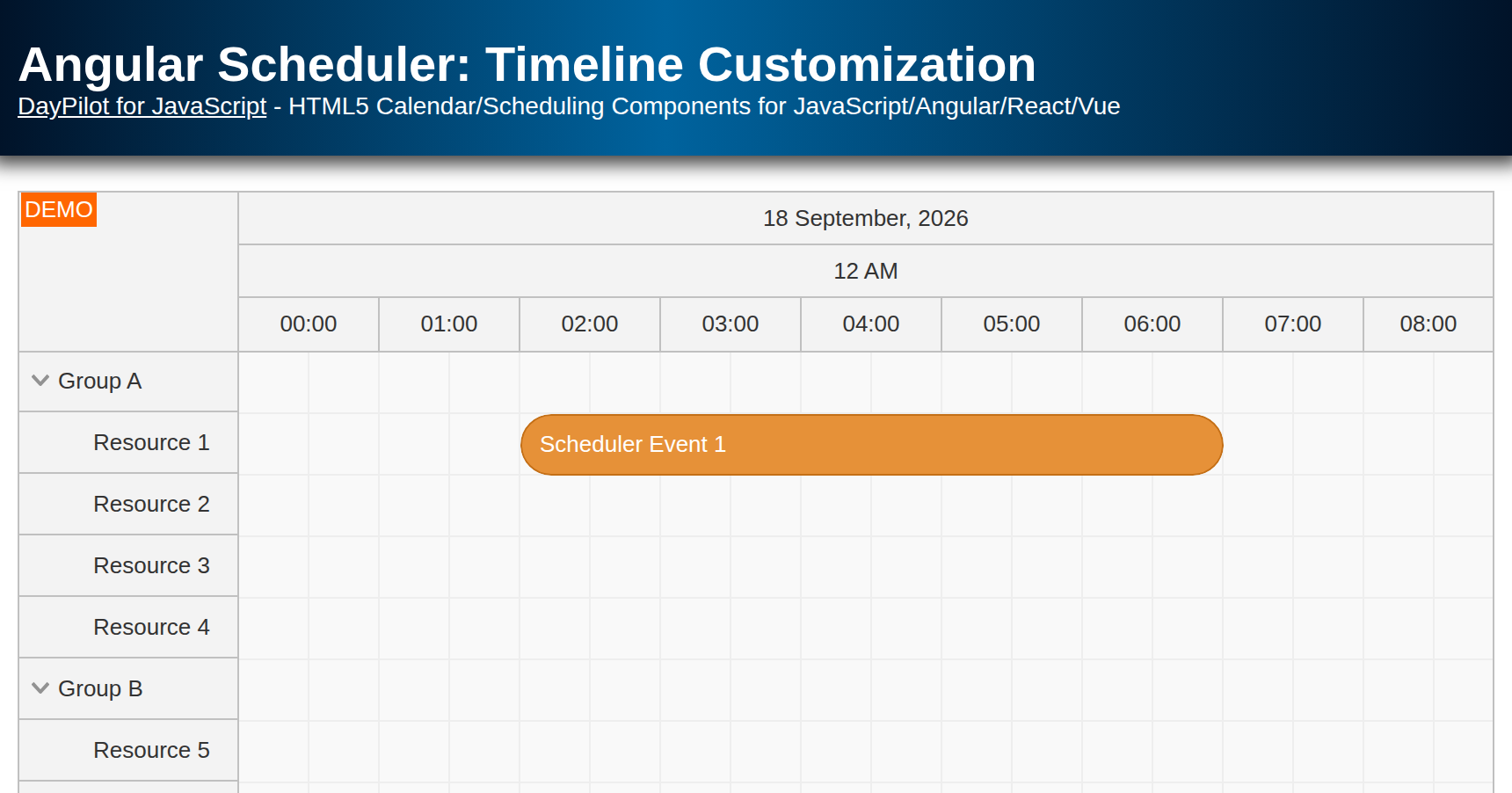
The Scheduler displays the timeline on the horizontal axis.
Three core properties define what you see:
-
startDate- date of the first visible column -
days- number of calendar days to render -
scale- duration represented by one cell
Above the grid, the Scheduler shows a time header. You can stack as many rows as you like, each grouping the cells by a larger unit (year → quarter → month → week → day → hour → minute).
For our manufacturing demo we will use the following timeline:
-
the current month;
-
one hour per cell (24 columns per day);
-
three header rows – month ▸ day ▸ hour.
This is the corresponding config:
config = signal<DayPilot.SchedulerConfig>({
  timeHeaders: [{groupBy:"Month"},{groupBy:"Day",format:"dddd MMMM d, yyyy"}, {groupBy:"Hour",format:"HH:mm"}],
  scale: "Hour",
  days: DayPilot.Date.today().daysInMonth(),
  startDate: DayPilot.Date.today().firstDayOfMonth(),
  // ...
});
Adjusting Density
The cell width can be adjusted as needed:
-
Wider cells (
cellWidth> 100 px) improve readability. -
Narrower cells let you fit more hours on screen by reducing
cellWidth. For finer time resolution, usescale: "CellDuration"andcellDuration: 30; this doubles the number of cells per hour rather than fitting more time on screen.
Scrolling Programmatically
After loading data, you can move the viewport to the specified time:
this.scheduler.control.scrollTo(DayPilot.Date.today().firstDayOfMonth().addHours(8));Custom CSS Theme: Rounded Corners
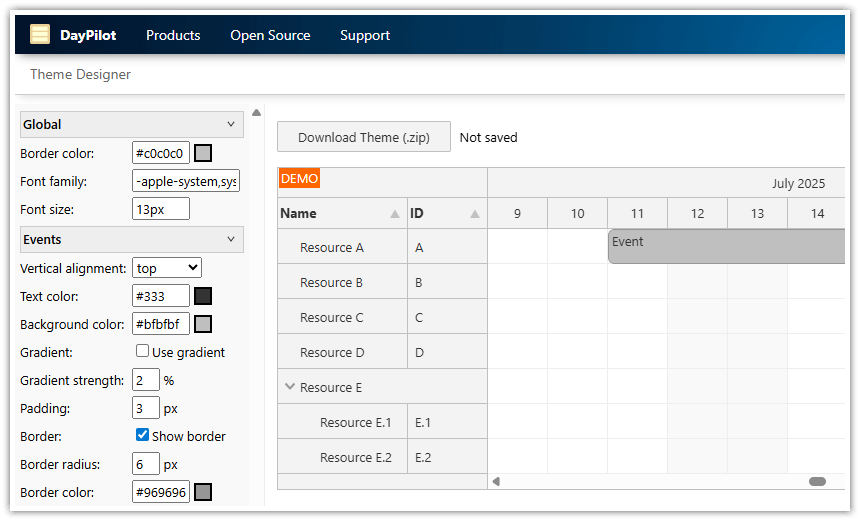
DayPilot ships with a clean but generic theme. In production you’ll want your scheduler to match your brand. The quickest route is the online Theme Designer.
In our Angular project, we will use a slightly modified CSS theme that uses rounded corners and gray background (rounded.css).
To create a new theme, follow these steps:
1. Navigate to https://themes.daypilot.org and select Scheduler.
2. You can tune and review the most common properties:
-
Global – font family and base size
-
Time & Row Headers – background, text color, horizontal/vertical alignment
-
Events – background color, text color, border radius, border color, optional drop shadow
-
Grid – separate background for business vs. non‑business cells
3. Click Download and save the ZIP file which contains the generated CSS theme (rounded.css). Save it as src/themes/rounded.css.
Importing the Theme in Angular
Import the stylesheet in src/styles.css:
@import url('./themes/rounded.css');Enabling the Theme in the Scheduler
config = signal<DayPilot.SchedulerConfig>({
  // ...
  durationBarVisible: false,
  theme: "rounded",
  // ...
});
The theme string must match the CSS class prefix used by the theme, such as rounded_main. Multiple schedulers in the same app can each specify a different theme.
Tweaking the Theme Manually
The generated theme uses CSS variables which can be changed as needed.
In src/themes/rounded.css, the defaults defined for .rounded_main are overridden by the values under .rounded_main:not(.default).
/*
DayPilot Scheduler Theme
https://themes.daypilot.org/scheduler/theme/snthkz
Theme Designer Version: 2025.06.18.39140
*/

/* overrides */
.rounded_main:not(.default) {
    --dp-scheduler-border-color: #c0c0c0;
    --dp-scheduler-border-inner-color: var(--dp-scheduler-border-color);
    --dp-scheduler-font-family: -apple-system,system-ui,BlinkMacSystemFont,'Segoe UI',Roboto,'Helvetica Neue',Arial,sans-serif;
    --dp-scheduler-font-size: 13px;
    --dp-scheduler-header-color: #333333;
    --dp-scheduler-header-bg-color: #f3f3f3;
    --dp-scheduler-message-padding: 10px;
    --dp-scheduler-message-bg-color: #ffa216;
    --dp-scheduler-message-color: #ffffff;
    --dp-scheduler-grid-line-color: #eeeeee;
    --dp-scheduler-event-color: #333333;
    --dp-scheduler-event-border-color: #969696;
    --dp-scheduler-event-border-radius: 6px;
    --dp-scheduler-event-padding: 3px;
    --dp-scheduler-event-bar-bg-color: #9dc8e8;
    --dp-scheduler-event-bar-color: #1066a8;
    --dp-scheduler-event-bar-left: 0px;
    --dp-scheduler-event-bar-right: 0px;
    --dp-scheduler-event-bar-top: 0px;
    --dp-scheduler-event-bar-height: 4px;
    --dp-scheduler-event-bar-display: none;
    --dp-scheduler-cell-bg-color: #f9f9f9;
    --dp-scheduler-cell-business-bg-color: #ffffff;
    --dp-scheduler-event-vertical-align: flex-start;
    --dp-scheduler-event-horizontal-align: ;
    --dp-scheduler-rowheader-padding: 7px;
    --dp-scheduler-rowheader-vertical-align: center;
    --dp-scheduler-timeheader-padding: 7px;
    --dp-scheduler-timeheader-horizontal-align: center;
    --dp-scheduler-timeheader-vertical-align: center;
    --dp-scheduler-event-background: #bfbfbf;
}

/* defaults */
.rounded_main {
    --dp-scheduler-border-color: #c0c0c0;
    --dp-scheduler-border-inner-color: #e0e0e0;
    --dp-scheduler-cell-bg-color: #f9f9f9;
    --dp-scheduler-cell-business-bg-color: #ffffff;
    --dp-scheduler-event-background: linear-gradient(to bottom, var(--dp-scheduler-event-bg-top-color) 0%, var(--dp-scheduler-event-bg-bottom-color) 100%);
    --dp-scheduler-event-bg-bottom-color: #eeeeee;
    --dp-scheduler-event-bg-top-color: #ffffff;
    --dp-scheduler-event-bar-bg-color: #9dc8e8;
    --dp-scheduler-event-bar-color: #1066a8;
    --dp-scheduler-event-bar-display: block;
    --dp-scheduler-event-bar-height: 4px;
    --dp-scheduler-event-bar-left: 0px;
    --dp-scheduler-event-bar-right: 0px;
    --dp-scheduler-event-bar-top: 0px;
    --dp-scheduler-event-border: 1px solid var(--dp-scheduler-event-border-color);
    --dp-scheduler-event-border-color: #ccc;
    --dp-scheduler-event-border-radius: 0px;
    --dp-scheduler-event-box-shadow: none;
    --dp-scheduler-event-color: #333;
    --dp-scheduler-event-horizontal-align: flex-start;
    --dp-scheduler-event-milestone-color: #38761d;
    --dp-scheduler-event-padding: 2px;
    --dp-scheduler-event-selected-bg-color: #ddd;
    --dp-scheduler-event-vertical-align: center;
    --dp-scheduler-focus-outline-color: red;
    --dp-scheduler-font-family: -apple-system, system-ui, BlinkMacSystemFont, "Segoe UI", Roboto, "Helvetica Neue", Arial, sans-serif;
    --dp-scheduler-font-size: 13px;
    --dp-scheduler-grid-line-break-color: #999;
    --dp-scheduler-grid-line-color: #eee;
    --dp-scheduler-header-bg-color: #f3f3f3;
    --dp-scheduler-header-color: #333;
    --dp-scheduler-link-color: #cc0000;
    --dp-scheduler-message-bg-color: #ffa216;
    --dp-scheduler-message-color: #ffffff;
    --dp-scheduler-message-padding: 10px;
    --dp-scheduler-rowheader-padding: 7px;
    --dp-scheduler-rowheader-vertical-align: center;
    --dp-scheduler-selectionrectangle-color: #1066a8;
    --dp-scheduler-shadow-border-color: #888888;
    --dp-scheduler-shadow-color: #bbbbbb;
    --dp-scheduler-timeheader-horizontal-align: center;
    --dp-scheduler-timeheader-padding: 0px;
    --dp-scheduler-timeheader-vertical-align: center;
}

/* ... */
Dark‑Mode tip: Export a second file — e.g.
rounded-dark.css— then useconfig.update()to switch thethemeproperty. The sample includes the rounded light theme only.
Define Resources and Load Events
Let’s create a simple DataService that returns the resource and event data:
import {Injectable} from "@angular/core";
import {Observable} from "rxjs";
import {DayPilot} from "@daypilot/daypilot-lite-angular";
import {HttpClient} from "@angular/common/http";
import EventData = DayPilot.EventData;

@Injectable()
export class DataService {

  events: EventData[] = [
    {
      id: 6,
      start: DayPilot.Date.today().firstDayOfMonth().addHours(9),
      end:   DayPilot.Date.today().firstDayOfMonth().addHours(10),
      text:  "",
      resource: "R2",
      tags: { type: "calibration" }
    },
    // ...

  ];

  resources: any[] = [
      { name: "Resource 1", id: "R1"},
      { name: "Resource 2", id: "R2"},
      { name: "Resource 3", id: "R3"},
      { name: "Resource 4", id: "R4"},
      { name: "Resource 5", id: "R5"},
      { name: "Resource 6", id: "R6"},
      { name: "Resource 7", id: "R7"},
      { name: "Resource 8", id: "R8"}
  ];

  constructor(private http : HttpClient){
  }

  getEvents(from: DayPilot.Date, to: DayPilot.Date): Observable<any[]> {

    // simulating an HTTP request
    return new Observable(observer => {
      setTimeout(() => {
        observer.next(this.events);
        observer.complete();
      }, 200);
    });

    // return this.http.get("/api/events?from=" + from.toString() + "&to=" + to.toString());
  }

  getResources(): Observable<any[]> {

    // simulating an HTTP request
    return new Observable(observer => {
      setTimeout(() => {
        observer.next(this.resources);
        observer.complete();
      }, 200);
    });

    // return this.http.get("/api/resources");
  }

}
Structure matters: Event objects must satisfy DayPilot.Event.data; resource objects must satisfy DayPilot.Scheduler.resources. Stick to the expected field names (id, start, end, resource, …) or the Scheduler will ignore them.
After both observables complete, update the configuration and event signals in the same callback. The Angular wrapper applies the new values to the Scheduler:
ngAfterViewInit(): void {
  const from = this.scheduler.control.visibleStart();
  const to   = this.scheduler.control.visibleEnd();

  forkJoin({
    resources: this.ds.getResources(),
    events:    this.ds.getEvents(from, to)
  }).subscribe(({ resources, events }) => {

    this.config.update(config => ({ ...config, resources }));
    this.events.set(events);

    this.scheduler.control.scrollTo(DayPilot.Date.today().firstDayOfMonth().addHours(8));
  });
}
We use forkJoin to wait until both streams complete, so resources and events arrive together. The simulated service calls observer.complete() after emitting its data; without completion, forkJoin would never emit. Replace these simulated requests with your HTTP endpoints when connecting a backend. The sample stores edits in memory, so reloading restores the original data.
Performance Optimizations
The Scheduler component implements progressive row rendering and progressive event rendering to support large data sets. These features limit rendering to the visible region and its buffer. They reduce DOM work, but do not reduce the amount of data downloaded; load only the required date range when connecting a backend.
Event Types and Custom Colors
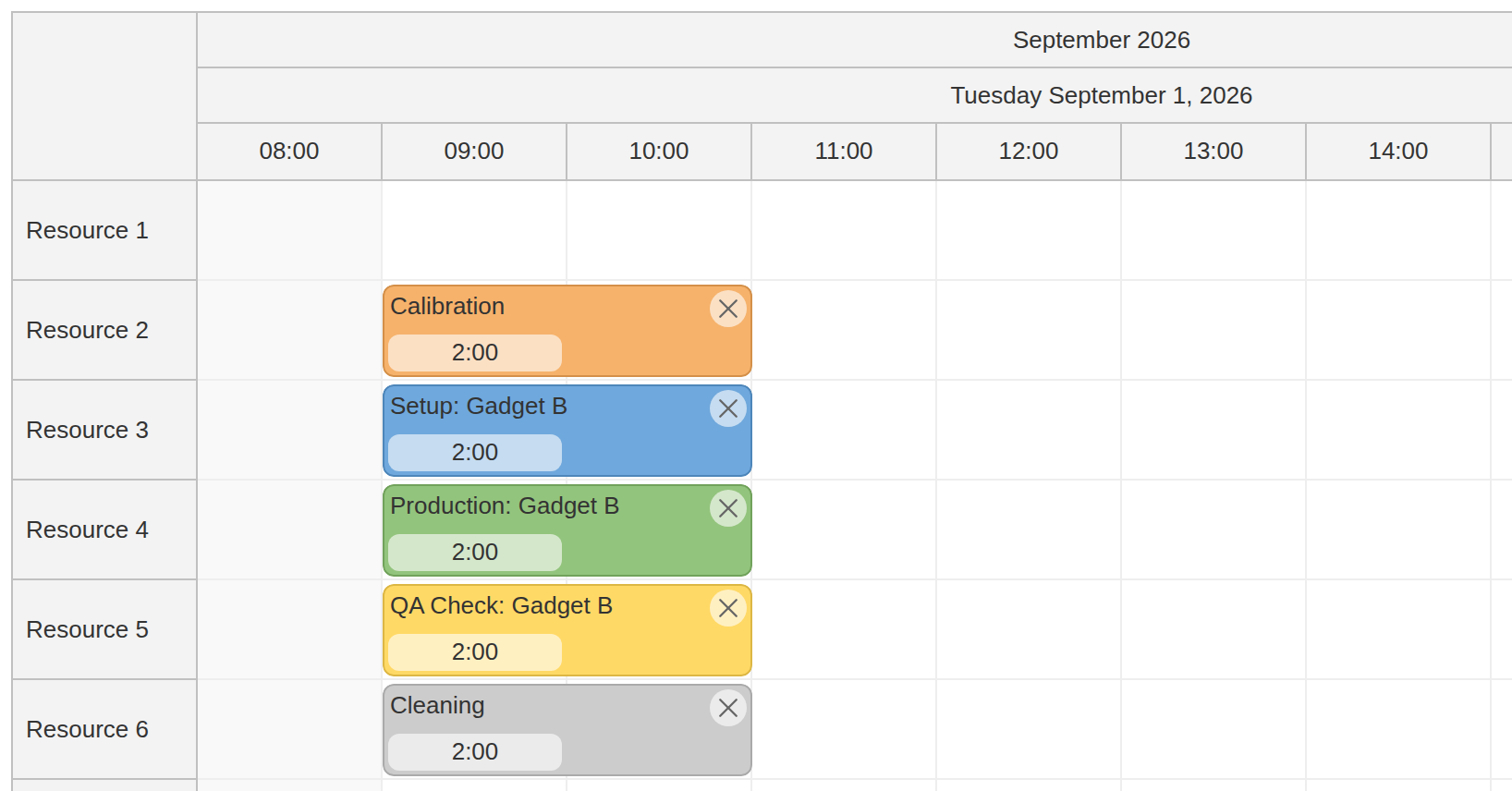
In most real‑world scenarios a single color for all events is not enough. We want to highlight different manufacturing stages such as “Production”, “Setup”, or “QA Check”.
Adding a Type to Each Event
We store custom data inside tags (a reserved property guaranteed never to clash with future DayPilot keys):
events: EventData[] = [
  {
    id: 6,
    start: DayPilot.Date.today().firstDayOfMonth().addHours(9),
    end:   DayPilot.Date.today().firstDayOfMonth().addHours(10),
    text:  "",
    resource: "R2",
    tags: { type: "calibration" }
  },
  // ...
];
Type → Color Lookup Table
This array maps each event type to a special color:
eventTypes = [
  { name: "Production", id: "production", color: "#93c47d" },
  { name: "Setup", id: "setup", color: "#6fa8dc" },
  { name: "Calibration", id: "calibration", color: "#f6b26b" },
  { name: "QA Check", id: "qa", color: "#ffd966" },
  { name: "Cleaning", id: "cleaning", color: "#cccccc" }
];
Coloring Events
The onBeforeEventRender event is called for every event before it gets painted, so it’s the perfect hook for appearance logic:
onBeforeEventRender: args => {
  args.data.borderColor = "darker";

  let typeText = "";
  const type = this.eventTypes.find(t => t.id === args.data.tags?.type);
  if (type) {
    typeText = type.name;
    args.data.backColor = type.color;
  }

  args.data.toolTip = args.data.text;

  if (args.data.text) {
    args.data.text = `${typeText}: ${args.data.text}`;
  }
  else {
    args.data.text = typeText;
  }
  // ...
},
At runtime the Scheduler will now paint “Calibration” events orange, “QA Check” events yellow, and so on.
Display Event Duration in a Badge
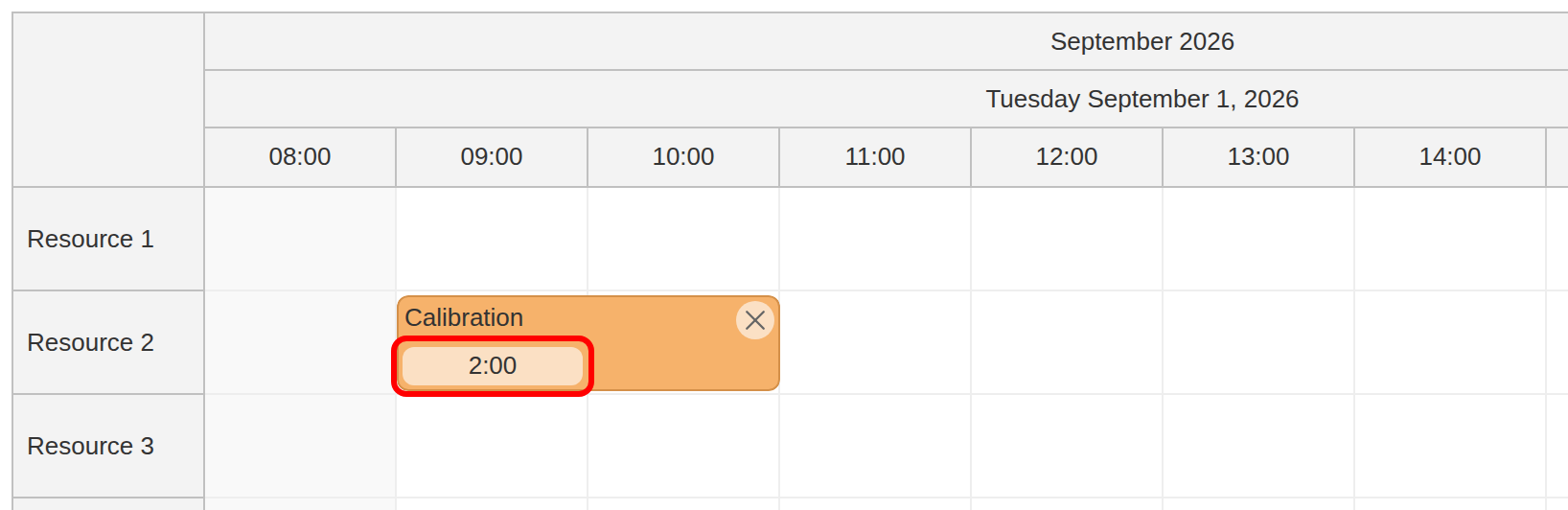
To show the length of each task directly on the bar, add an active area inside onBeforeEventRender. The handler computes the duration, formats it as hours:minutes, and places a small badge in the bottom‑left corner of the event.
onBeforeEventRender: args => {
  // ...
  const duration = new DayPilot.Duration(args.data.start, args.data.end);
  const totalHours = Math.floor(duration.totalHours());
  const durationText = duration.toString(`${totalHours}:mm`);

  args.data.areas = [
    // ...
    {
      bottom: 3,
      left: 3,
      width: 94,
      height: 20,
      backColor: "#ffffff99",
      borderRadius: 6,
      verticalAlignment: "center",
      horizontalAlignment: "center",
      text: durationText,
    }
  ];
  // ...
},
Every bar now carries a subtle badge like 2:30, helping users see task length at a glance without opening a modal or tooltip.
Inline Delete Icon on Each Event
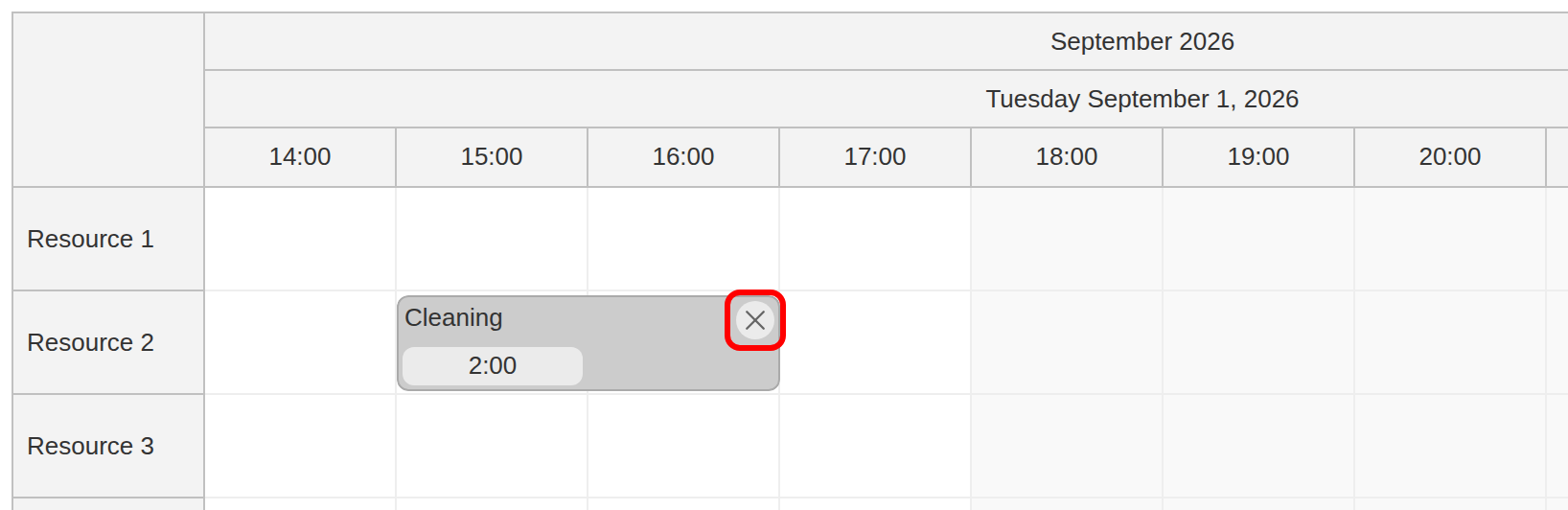
Give users a one‑click way to remove entries by overlaying a small ✕ icon in the event’s top‑right corner.
We’ll reuse the built‑in SVG symbol daypilot.svg#x-2 (preview all bundled icons at https://icons.daypilot.org/) and attach a click handler that removes the event from the events signal by ID. The wrapper then removes the bar from the UI. In a backend application, persist the deletion on the server as well.
onBeforeEventRender: args => {
  // ...
  args.data.areas = [
    {
      top: 3,
      right: 3,
      width: 20,
      height: 20,
      backColor: "#ffffff99",
      borderRadius: "50%",
      padding: 3,
      fontColor: "#666666",
      symbol: "icons/daypilot.svg#x-2",
      onClick: args => {
        const e = args.source;
        this.events.update(events => events.filter(item => item.id !== e.id()));
      }
    },
    // ...
  ];
  // ...
},
Full Source Code
Here is the full source code of our Angular Scheduler component implementation. Selecting a time range opens a form for the event text and type. Confirming the form appends an event to the signal; canceling leaves it unchanged. Move and resize callbacks copy the new dates and resource into the signal so subsequent edits keep the current schedule.
import {Component, ViewChild, AfterViewInit, signal} from '@angular/core';
import {DayPilot, DayPilotModule, DayPilotSchedulerComponent} from '@daypilot/daypilot-lite-angular';
import {DataService} from './data.service';
import {forkJoin} from 'rxjs';

@Component({
  selector: 'scheduler-component',
  standalone: true,
  imports: [DayPilotModule],
  providers: [DataService],
  template: `<daypilot-scheduler [config]="config" [events]="events" #scheduler></daypilot-scheduler>`,
  styles: [``]
})
export class SchedulerComponent implements AfterViewInit {

  @ViewChild('scheduler')
  scheduler!: DayPilotSchedulerComponent;

  events = signal<DayPilot.EventData[]>([]);

  eventTypes = [
    { name: "Production", id: "production", color: "#93c47d" },
    { name: "Setup", id: "setup", color: "#6fa8dc" },
    { name: "Calibration", id: "calibration", color: "#f6b26b" },
    { name: "QA Check", id: "qa", color: "#ffd966" },
    { name: "Cleaning", id: "cleaning", color: "#cccccc" }
  ];

  form: DayPilot.ModalFormItem[] = [
    { name: "Text", id: "text", type: "text"},
    { name: "Type", id: "tags.type", type: "select", options: this.eventTypes.map(t => ({name: t.name, id: t.id})) }
  ];

  config = signal<DayPilot.SchedulerConfig>({
    timeHeaders: [{groupBy:"Month"},{groupBy:"Day",format:"dddd MMMM d, yyyy"}, {groupBy:"Hour",format:"HH:mm"}],
    scale: "Hour",
    days: DayPilot.Date.today().daysInMonth(),
    startDate: DayPilot.Date.today().firstDayOfMonth(),
    timeRangeSelectedHandling: "Enabled",
    onTimeRangeSelected: async (args) => {
      const scheduler = args.control;
      const e = {
        id: DayPilot.guid(),
        start: args.start,
        end: args.end,
        resource: args.resource,
        text: "",
        tags : {
          type: "production",
        }
      };
      const modal = await DayPilot.Modal.form(this.form, e);
      scheduler.clearSelection();
      if (modal.canceled) { return; }
      this.events.update(events => [...events, modal.result]);
    },
    eventMoveHandling: "Update",
    onEventMoved: args => {
      this.events.update(events => events.map(e => e.id === args.e.id()
        ? { ...e, start: args.newStart, end: args.newEnd, resource: args.newResource } : e));
    },
    eventResizeHandling: "Update",
    onEventResized: args => {
      this.events.update(events => events.map(e => e.id === args.e.id()
        ? { ...e, start: args.newStart, end: args.newEnd } : e));
    },
    eventHeight: 50,
    cellWidth: 100,
    durationBarVisible: false,
    theme: "rounded",
    rowHeaderWidth: 100,
    rowMarginTop: 2,
    rowMarginBottom: 2,
    onBeforeEventRender: args => {
      args.data.borderColor = "darker";

      let typeText = "";
      const type = this.eventTypes.find(t => t.id === args.data.tags?.type);
      if (type) {
        typeText = type.name;
        args.data.backColor = type.color;
      }

      args.data.toolTip = args.data.text;

      if (args.data.text) {
        args.data.text = `${typeText}: ${args.data.text}`;
      }
      else {
        args.data.text = typeText;
      }

      const duration = new DayPilot.Duration(args.data.start, args.data.end);
      const totalHours = Math.floor(duration.totalHours());
      const durationText = duration.toString(`${totalHours}:mm`);

      args.data.areas = [
        {
          top: 3,
          right: 3,
          width: 20,
          height: 20,
          backColor: "#ffffff99",
          borderRadius: "50%",
          padding: 3,
          fontColor: "#666666",
          symbol: "icons/daypilot.svg#x-2",
          onClick: args => {
            const e = args.source;
            this.events.update(events => events.filter(item => item.id !== e.id()));
          }
        },
        {
          bottom: 3,
          left: 3,
          width: 94,
          height: 20,
          backColor: "#ffffff99",
          borderRadius: 6,
          verticalAlignment: "center",
          horizontalAlignment: "center",
          text: durationText,
        }
      ];

    },
  });

  constructor(private ds: DataService) {
  }

  ngAfterViewInit(): void {
    const from = this.scheduler.control.visibleStart();
    const to   = this.scheduler.control.visibleEnd();

    forkJoin({
      resources: this.ds.getResources(),
      events:    this.ds.getEvents(from, to)
    }).subscribe(({ resources, events }) => {

      this.config.update(config => ({ ...config, resources }));
      this.events.set(events);

      this.scheduler.control.scrollTo(DayPilot.Date.today().firstDayOfMonth().addHours(8));
    });
  }

}