DayPilot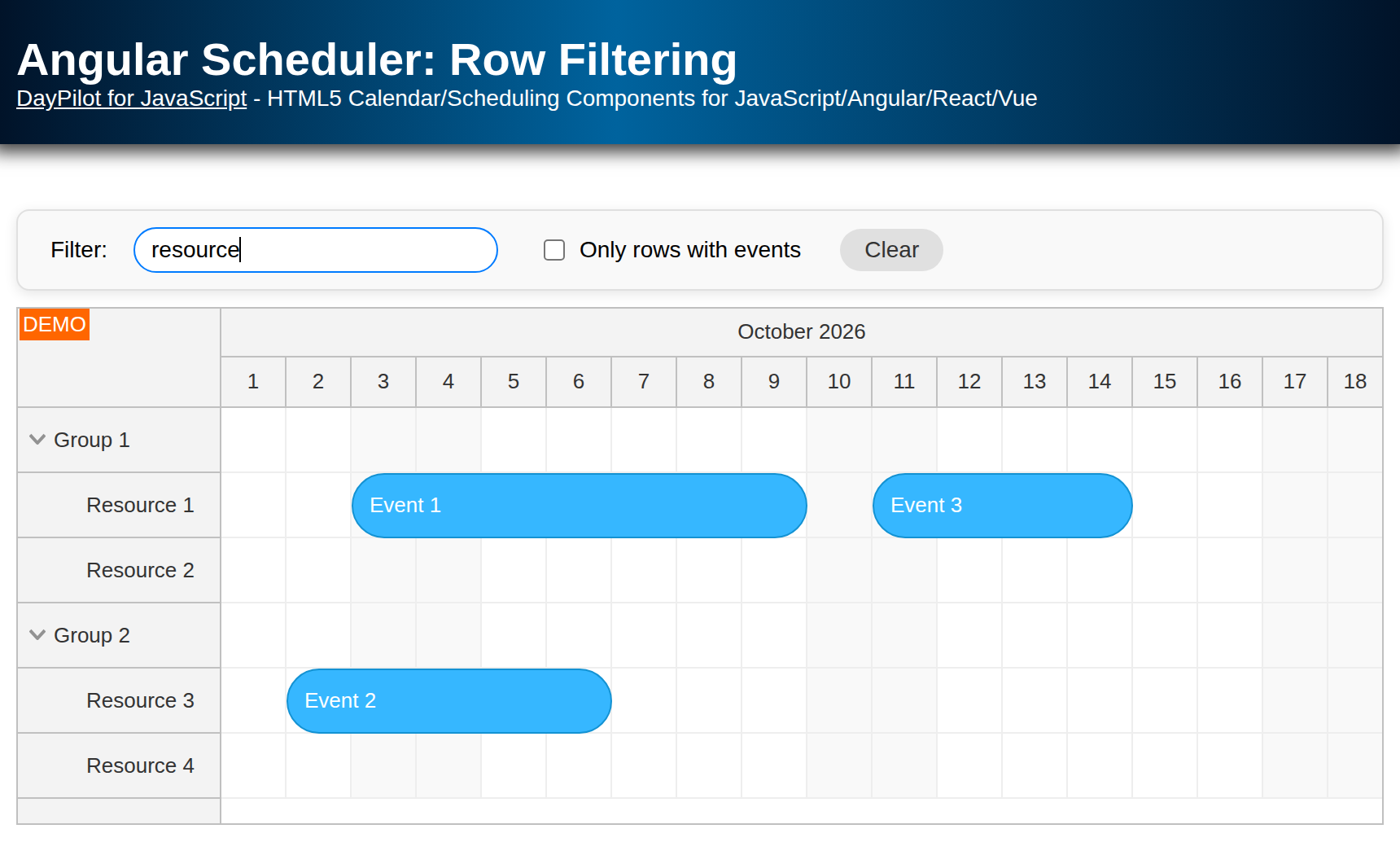
| Demo | |
|---|---|
| Downloads | |
| Languages | TypeScript |
| Technologies | angular |
Features
-
This Angular project uses the Angular Scheduler component from DayPilot Pro for JavaScript to display a timeline with tasks/events for multiple resources.
-
A real-time filter feature updates the list of rows depending on the search criteria.
-
You can filter rows by name.
-
You can display only rows with tasks/events.
-
Both filters can be combined.
-
Angular project with TypeScript source code is attached.
For an introduction to using Angular Scheduler, please see the following tutorial:
See also a similar tutorial on event filtering:
License
Licensed for testing and evaluation purposes. Please see the license agreement included in the sample project. You can use the source code of the tutorial if you are a licensed user of DayPilot Pro for JavaScript.
Filtering Scheduler Rows by Name
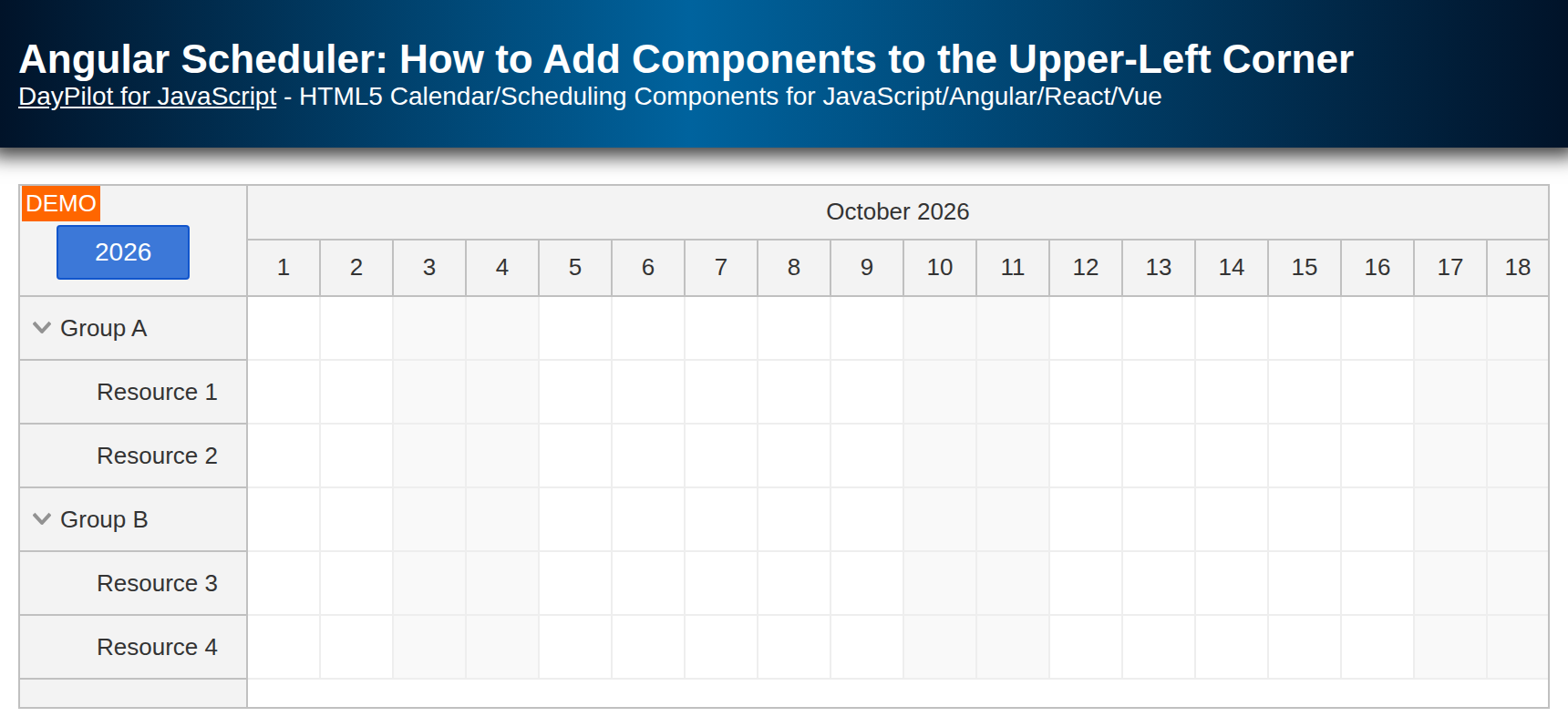
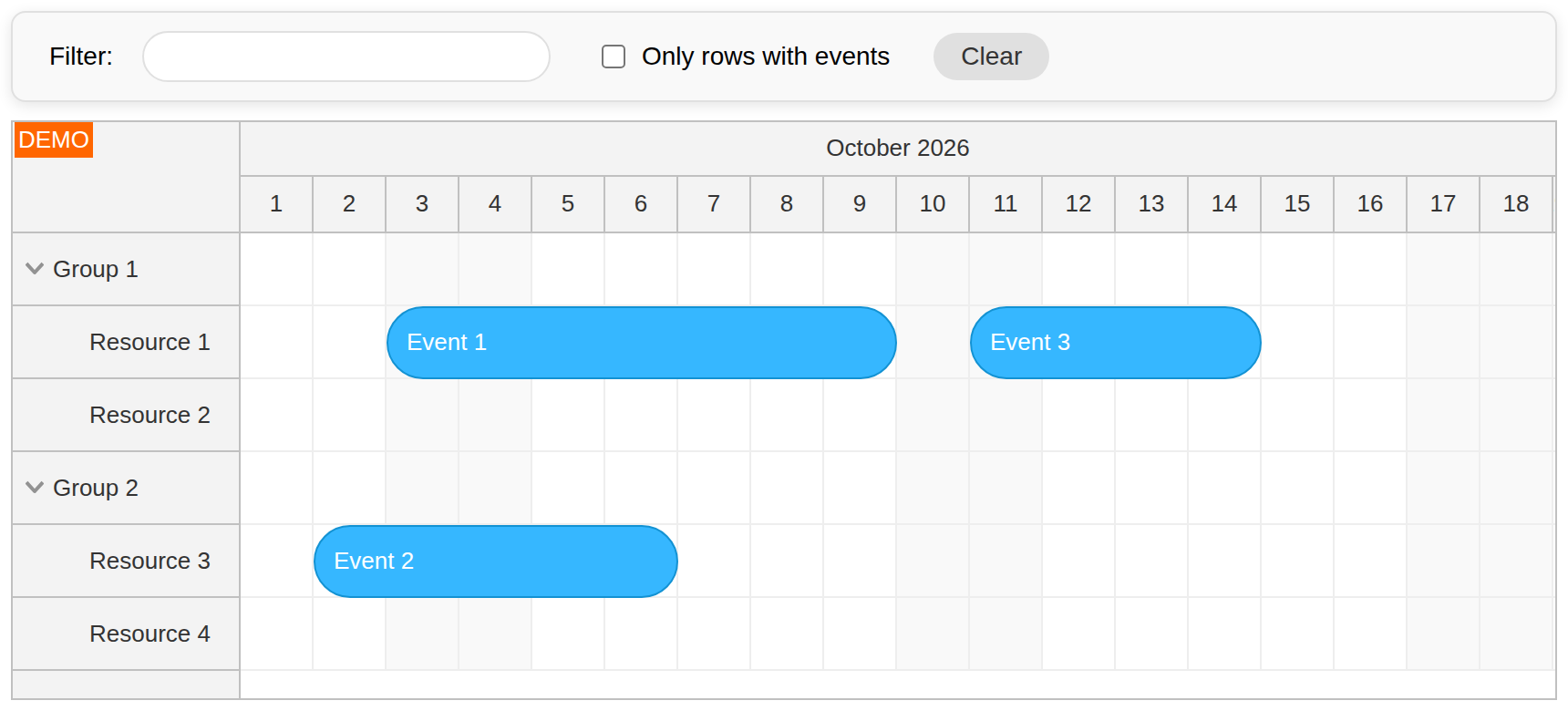
On startup, the Angular application displays the full Scheduler with all rows visible:
When you type text into the Filter field, the Scheduler updates immediately. Only resources containing the filter text will be displayed. Matching is case-insensitive: typing resource 3 also matches Resource 3.
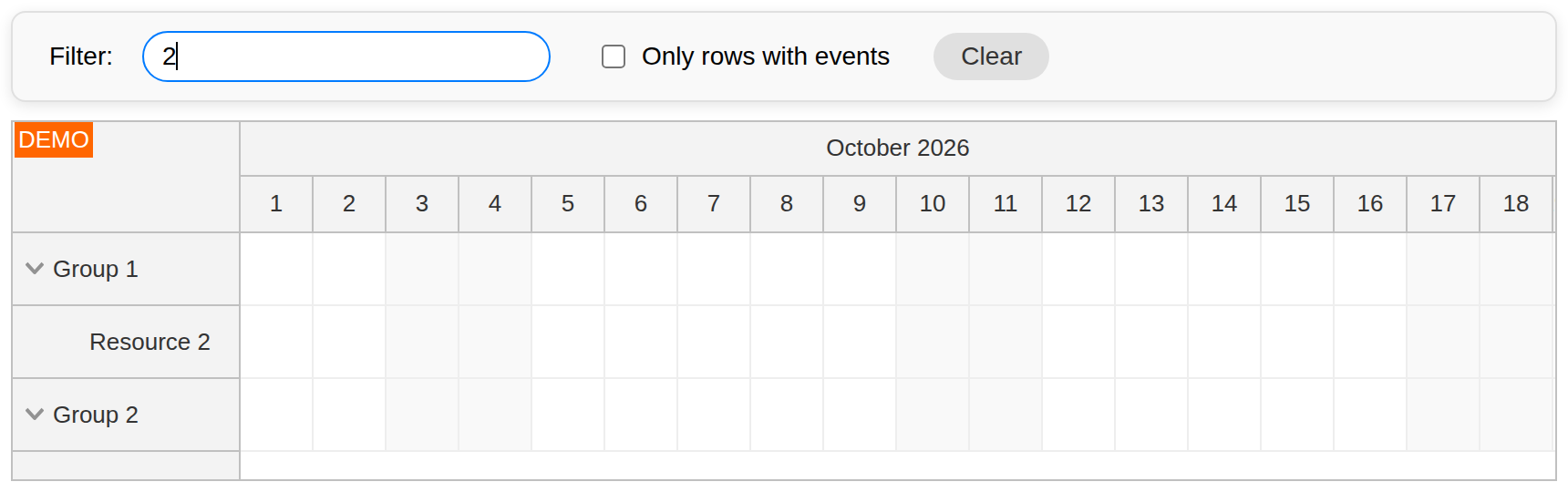
The row filter implementation consists of three parts:
-
The application displays a toolbar with the filter UI, including an input element for the filter text.
-
Whenever there's a change in the filter UI, the rows.filter() method is invoked. This method passes the filter parameters to the Scheduler and requests an update.
-
The onRowFilter event handler, defined in the Scheduler
config, evaluates the filter parameters for each row to determine whether a row should be visible or not.
Filter toolbar input UI:
<div class="toolbar">
  <label>
    Filter:
    <input type="text" [ngModel]="filter().text" (ngModelChange)="changeText($event)" />
  </label>
  ...
</div>
Filter update logic:
export class SchedulerComponent implements AfterViewInit {
  @ViewChild('scheduler')
  scheduler!: DayPilotSchedulerComponent;

  // ...

  filter = signal<SchedulerFilter>({ text: '', eventsOnly: false });

  // ...

  changeText(text: string): void {
    this.filter.update((filter) => ({ ...filter, text }));
    this.applyFilter();
  }

  // ...

  applyFilter(): void {
    this.scheduler.control.rows.filter(this.filter());
  }

  // ...
}
Row filter event handler:
onRowFilter: (args) => {
  const filter = args.filterParam as SchedulerFilter;
  const rowName = args.row.name.toLowerCase();

  if (filter.text && !rowName.includes(filter.text.toLowerCase())) {
    args.visible = false;
  }
  if (filter.eventsOnly && args.row.events.all().length === 0) {
    args.visible = false;
  }
},
Rows are visible by default. The onRowFilter event handler checks the filter condition sent from the rows.filter() method (it's available as args.filterParam in the event handler). If the row doesn't meet the filter condition it's marked as not visible (args.visible = false).
Parents of visible rows remain displayed, even if the handler sets args.visible = false for those parents. This is controlled by rowFilterParentsAlwaysVisible, which is enabled by default. A parent with no visible children is shown only if it passes the filter itself.
Here is the full Scheduler component implementation (scheduler.component.ts):
import { AfterViewInit, Component, signal, ViewChild } from '@angular/core';
import { FormsModule } from '@angular/forms';
import { DayPilot, DayPilotModule, DayPilotSchedulerComponent } from 'daypilot-pro-angular';
import { DataService } from './data.service';

interface SchedulerFilter {
  text: string;
  eventsOnly: boolean;
}

@Component({
  selector: 'scheduler-component',
  standalone: true,
  imports: [DayPilotModule, FormsModule],
  providers: [DataService],
  template: `
    <div class="toolbar">
      <label>
        Filter:
        <input type="text" [ngModel]="filter().text" (ngModelChange)="changeText($event)" />
      </label>
      <label>
        <input
          type="checkbox"
          [ngModel]="filter().eventsOnly"
          (ngModelChange)="changeWithEvents($event)"
        />
        Only rows with events
      </label>
      <button type="button" (click)="clearFilter()">Clear</button>
    </div>

    <daypilot-scheduler [config]="config" [events]="events" #scheduler></daypilot-scheduler>
  `,
  styles: [
    `
      .toolbar {
        display: flex;
        align-items: center;
        flex-wrap: wrap;
        gap: 8px 14px;
        margin-bottom: 10px;
      }

      .toolbar label {
        display: inline-flex;
        align-items: center;
        gap: 6px;
      }
    `,
  ],
})
export class SchedulerComponent implements AfterViewInit {
  @ViewChild('scheduler')
  scheduler!: DayPilotSchedulerComponent;

  events = signal<DayPilot.EventData[]>([]);
  filter = signal<SchedulerFilter>({ text: '', eventsOnly: false });

  config = signal<DayPilot.SchedulerConfig>({
    timeHeaders: [
      { groupBy: 'Month', format: 'MMMM yyyy' },
      { groupBy: 'Day', format: 'd' },
    ],
    eventHeight: 40,
    scale: 'Day',
    days: DayPilot.Date.today().daysInMonth(),
    startDate: DayPilot.Date.today().firstDayOfMonth(),
    treeEnabled: true,
    durationBarVisible: false,
    onRowFilter: (args) => {
      const filter = args.filterParam as SchedulerFilter;
      const rowName = args.row.name.toLowerCase();

      if (filter.text && !rowName.includes(filter.text.toLowerCase())) {
        args.visible = false;
      }
      if (filter.eventsOnly && args.row.events.all().length === 0) {
        args.visible = false;
      }
    },
  });

  constructor(private ds: DataService) {}

  ngAfterViewInit(): void {
    this.ds.getResources().subscribe((result) => {
      this.config.update((c) => ({ ...c, resources: result }));
    });

    const from = this.scheduler.control.visibleStart();
    const to = this.scheduler.control.visibleEnd();
    this.ds.getEvents(from, to).subscribe((result) => {
      this.events.set(result);
    });
  }

  changeText(text: string): void {
    this.filter.update((filter) => ({ ...filter, text }));
    this.applyFilter();
  }

  changeWithEvents(eventsOnly: boolean): void {
    this.filter.update((filter) => ({ ...filter, eventsOnly }));
    this.applyFilter();
  }

  applyFilter(): void {
    this.scheduler.control.rows.filter(this.filter());
  }

  clearFilter(): void {
    this.filter.set({ text: '', eventsOnly: false });
    this.applyFilter();
  }
}
Filtering Scheduler Rows by Events
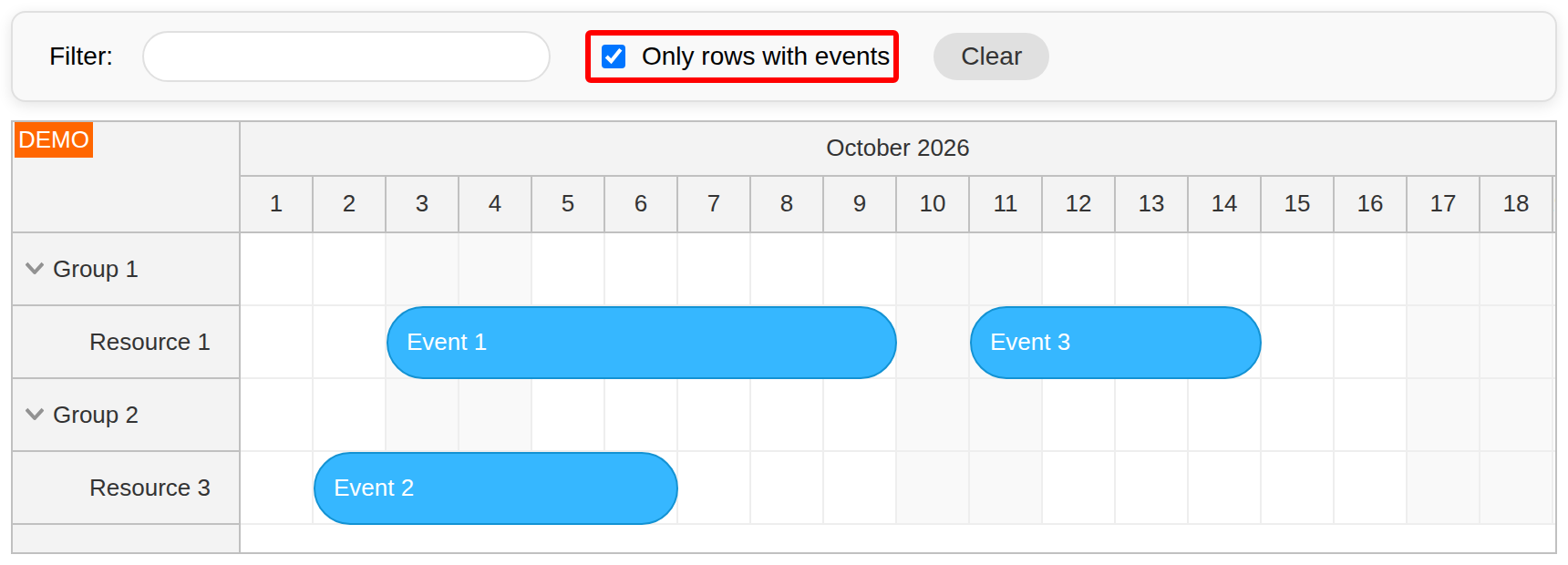
The same approach is used for filtering the rows depending on their content. Checking Only rows with events hides empty resources, leaving Resource 1 and Resource 3 in this sample. The checkbox stores its state in the same filter object and applies it through rows.filter():
<label>
  <input
    type="checkbox"
    [ngModel]="filter().eventsOnly"
    (ngModelChange)="changeWithEvents($event)"
  />
  Only rows with events
</label>
Inside the Scheduler config, the onRowFilter event handler checks if there are any events in the row using args.row.events.all():
config = signal<DayPilot.SchedulerConfig>({
  // ...
  onRowFilter: (args) => {
    const filter = args.filterParam as SchedulerFilter;
    const rowName = args.row.name.toLowerCase();

    if (filter.text && !rowName.includes(filter.text.toLowerCase())) {
      args.visible = false;
    }
    if (filter.eventsOnly && args.row.events.all().length === 0) {
      args.visible = false;
    }
  },
});
Both conditions use the same filter object. When text and the checkbox are set, a resource must match the name and contain at least one event to remain visible. For example, text 3 with the checkbox selected shows Resource 3 and its parent group.
When the checkbox value changes, the Angular component updates the signal and reapplies the Scheduler row filter:
changeWithEvents(eventsOnly: boolean): void {
  this.filter.update((filter) => ({ ...filter, eventsOnly }));
  this.applyFilter();
}
Clearing the Filter
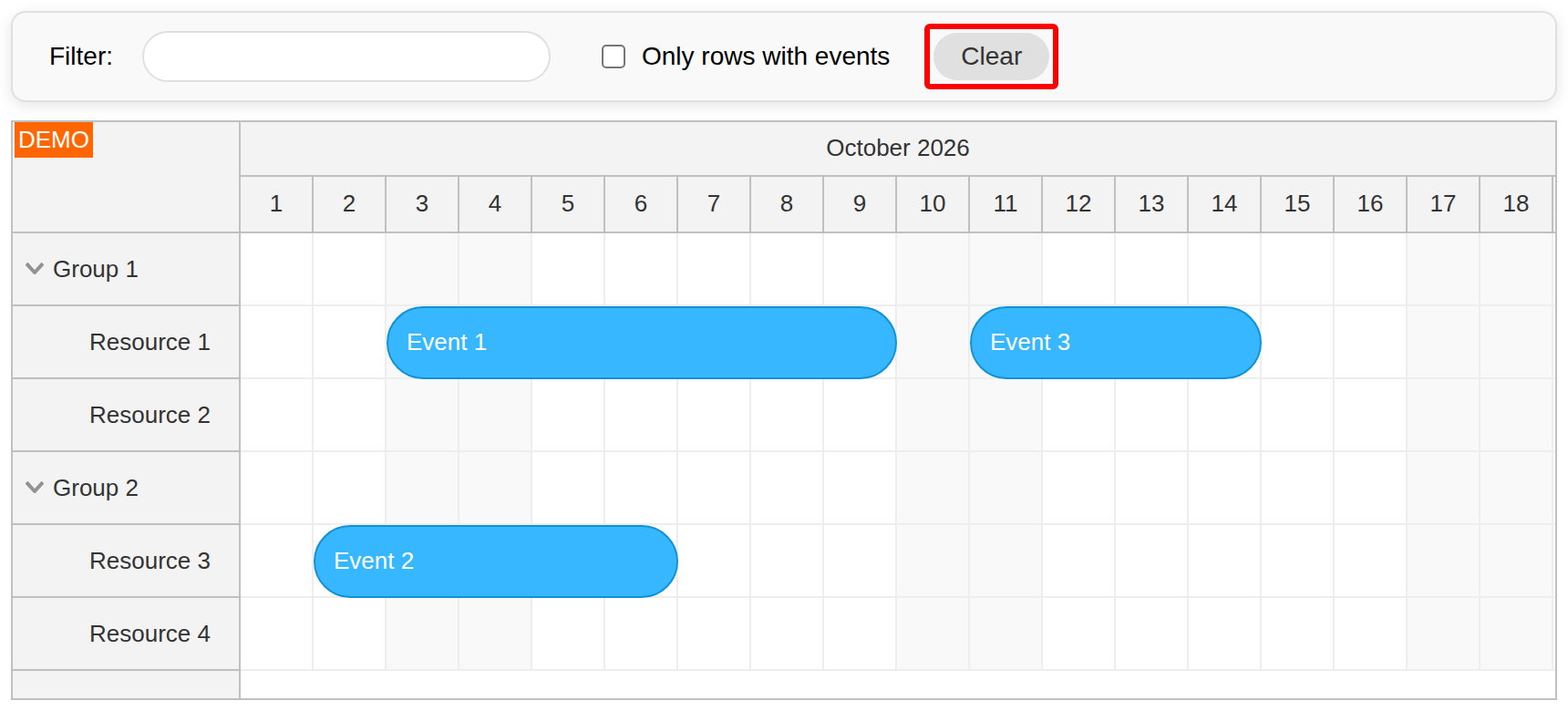
In order to clear the filter, reset the signal value and apply the filter again. This resets both toolbar controls and displays all resources. Filtering changes row visibility; it does not remove the resources or their events:
clearFilter(): void {
  this.filter.set({ text: '', eventsOnly: false });
  this.applyFilter();
}
History
-
October 24, 2026: Updated to Angular 22.
-
June 5, 2026: Updated to Angular 21 and signal-based Scheduler state.